

What to do when your server crashes
Steps to read the crash card and console, inspect log files, restart your server, and check backups when your server crashes.
Auf dieser Seite
Minecraft & Game Servers Anleitungen
1. Check the crash card and console#
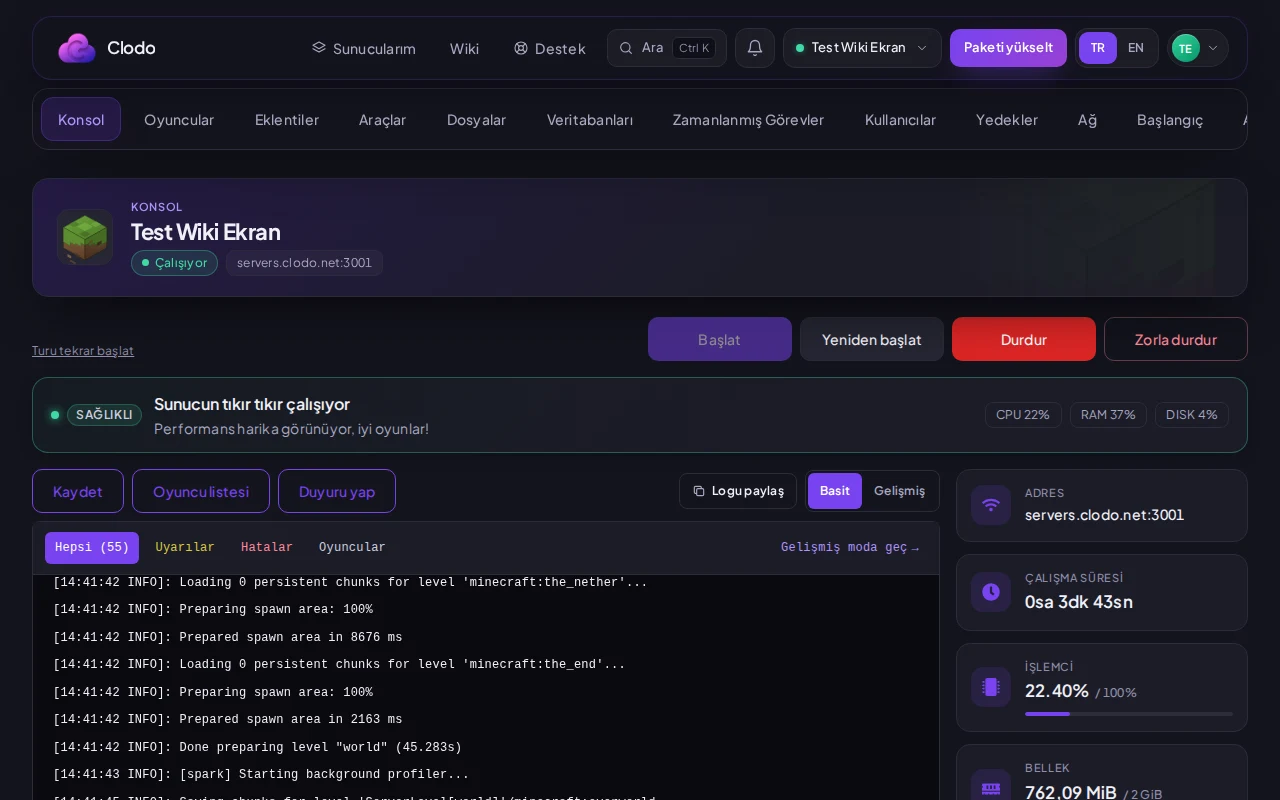
When your server unexpectedly stops, a crash card appears in the panel summarizing the event. Switch to the console tab to review the latest error output. The final lines typically indicate whether the stoppage was caused by an out-of-memory error, missing dependency, or a failing plugin.
2. Locating logs and crash reports#
Inspect latest.log
Open the File Manager and navigate to the logs folder. The latest.log file records all server operations right before the crash, including stack traces and 'Caused by' details.
Check the crash-reports folder
When the server halts due to a fatal exception, a crash-reports directory is generated in the root path. The dated crash-*.txt files pinpoint which plugin or thread caused the failure.
3. Restarting and checking backups#
Fehlerbehebung
Server crashes repeatedly during startup
A newly added incompatible plugin or broken configuration file
Remove the offending plugin from the plugins folder via the File Manager and restart the server
Crash occurs while loading world data
Corrupted chunk or region files caused by an abrupt power or process halt
Go to the Backups tab, select the most recent healthy backup taken before the incident, and restore it
War diese Anleitung hilfreich?
Feedback geht direkt an das Team, das diese Anleitung pflegt.
Keine Lösung gefunden?
Sie können im Panel eine Anfrage an unser Support-Team senden.