Changing Minecraft and Java versions
Selecting the Minecraft engine version and compatible Java runtime in the Startup tab, restarting, and managing downgrade risks.
En esta página
Minecraft & Game Servers guías
When upgrading your Minecraft engine or matching specific plugin requirements, you can adjust your Minecraft and Java versions directly in the panel. Selecting the correct Java runtime and safeguarding your world data are essential for a smooth migration.
1. Selecting a version in the Startup tab#
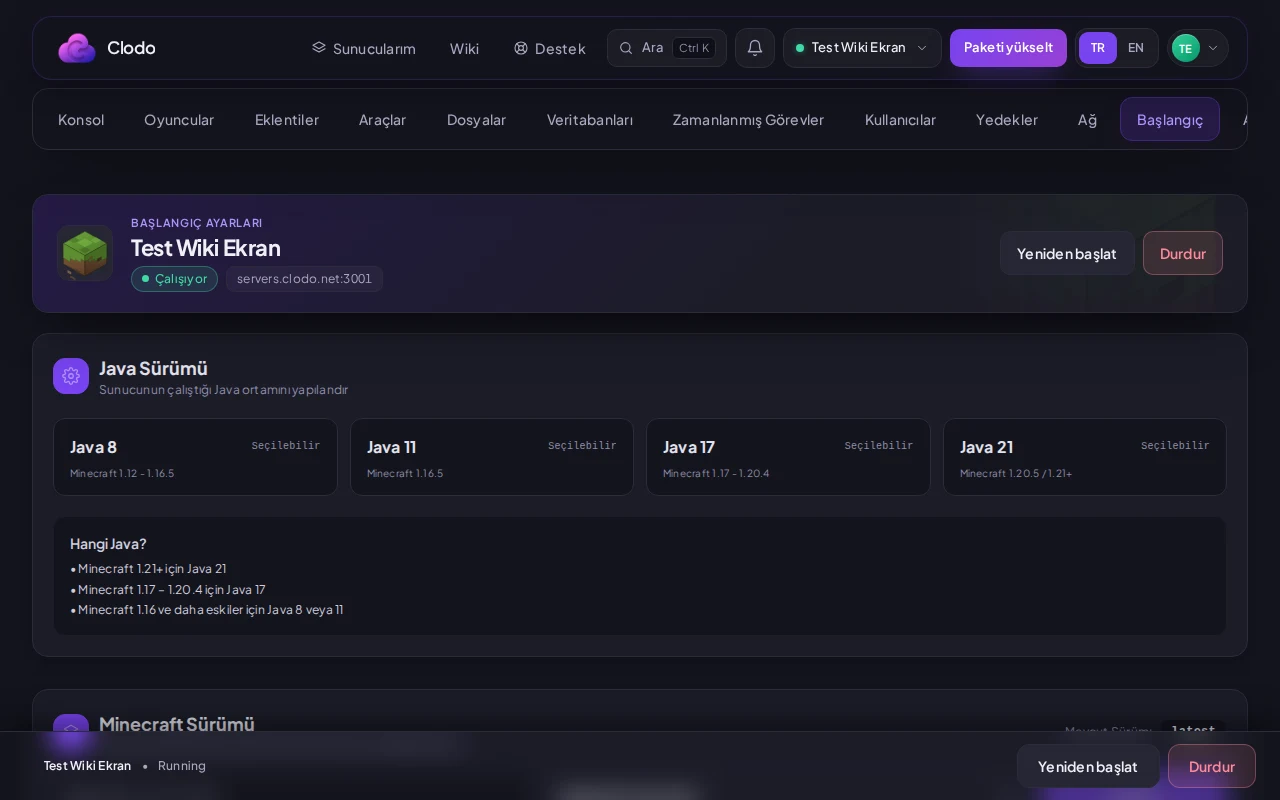
Go to the Startup tab
Open the Startup tab from your server menu in the panel.
Set the version picker
Choose your target Minecraft version from the version picker dropdown. This sets up the corresponding server jar on your next boot.
2. Setting a compatible Java runtime#
Configure the Java picker
Select the corresponding Java runtime from the Java picker in the Startup tab. Modern versions (1.20.5+) require Java 21, versions 1.17 through 1.20.4 require Java 17, and legacy builds generally run on Java 8 or 11.
Restart the server
Restart your server to activate your choices. The new engine version and Java environment will initialize in the console output.
¿Te ha resultado útil esta guía?
Los comentarios van directamente al equipo que mantiene esta guía.
¿No encontró una solución?
Puede abrir una solicitud al equipo de soporte desde el panel.