

Creating backups, restoring, and file manager trash
A guide to creating manual backups, restoring them from the Backups tab, and recovering deleted files using the File Manager Trash.
Sur cette page
Minecraft & Game Servers guides
Taking a backup before testing new plugins, modifying configuration files, or switching server versions protects your server against data loss. The Backups tab and the File Manager trash mechanism allow you to recover your server quickly whenever an issue occurs.
1. Creating a backup in the panel#
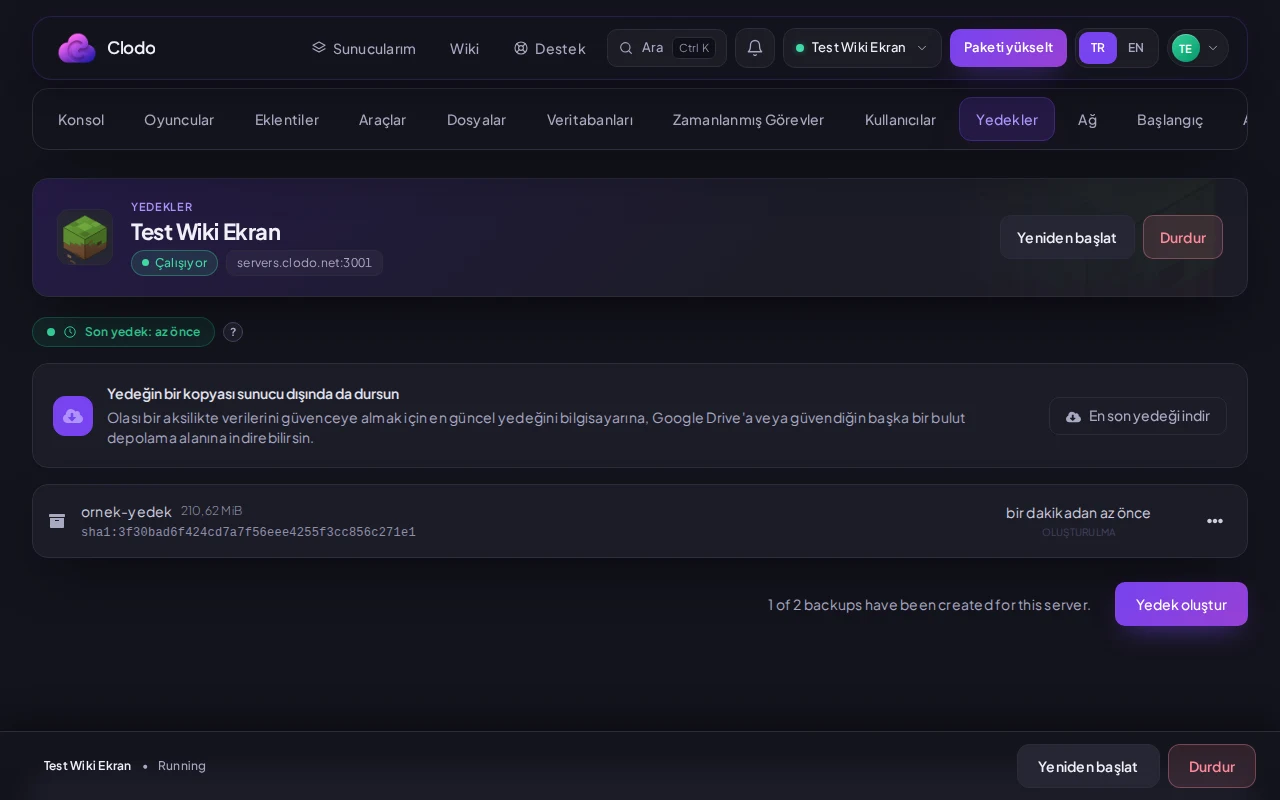
Open the Backups tab
Navigate to the Backups tab in your server management panel.
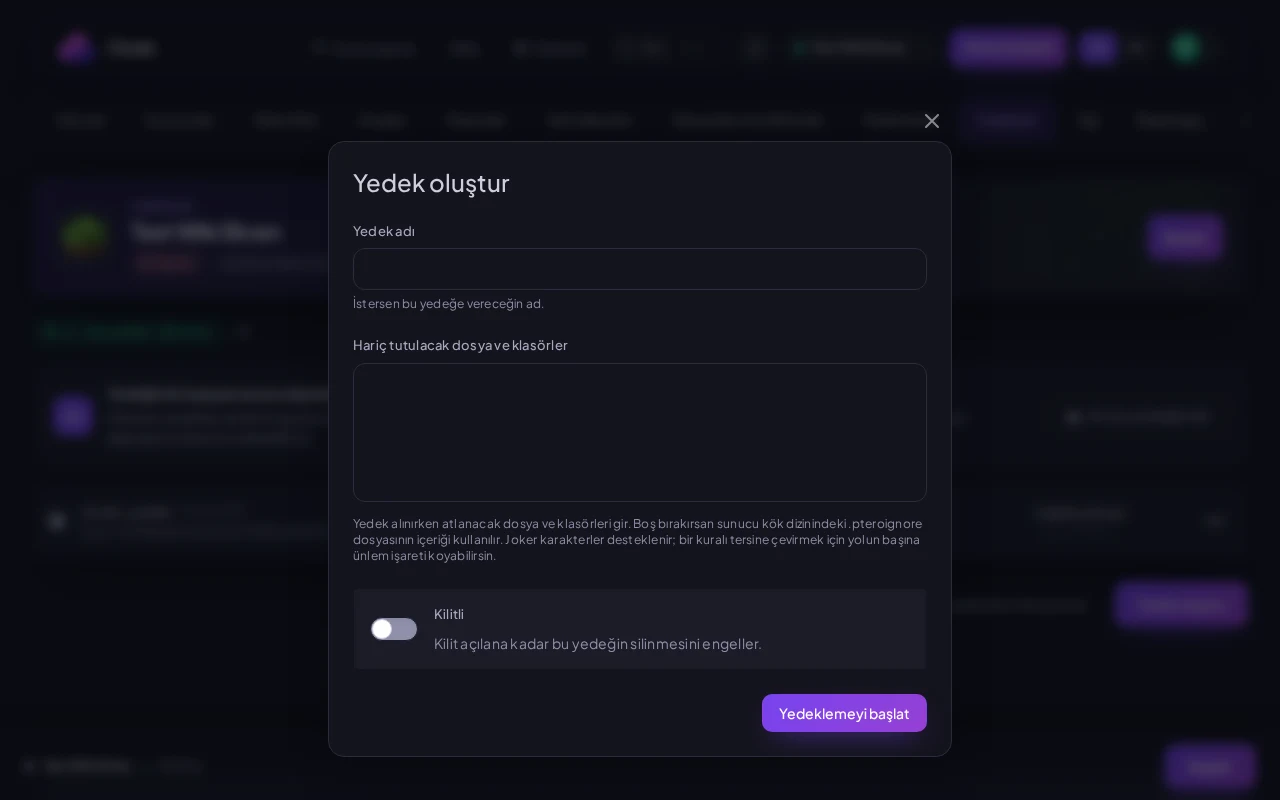
Initiate backup
Click the backup creation button to start. Depending on the size of your server files, the archive is created and listed in your backups table.
2. Restoring a backup#
3. File Manager trash and the /.trash folder#
Files deleted inside the File Manager are not permanently wiped immediately; they are safely relocated to the hidden /.trash directory in the server root. Click the Trash button in the File Manager toolbar to view deleted items and restore any file back to its original location with a single click. This provides immediate recovery for accidentally deleted configurations.
Ce guide vous a-t-il été utile ?
Les retours sont directement transmis à l'équipe qui maintient ce guide.
Vous n’avez pas trouvé de solution ?
Vous pouvez ouvrir une demande auprès de notre équipe d’assistance depuis le panneau.